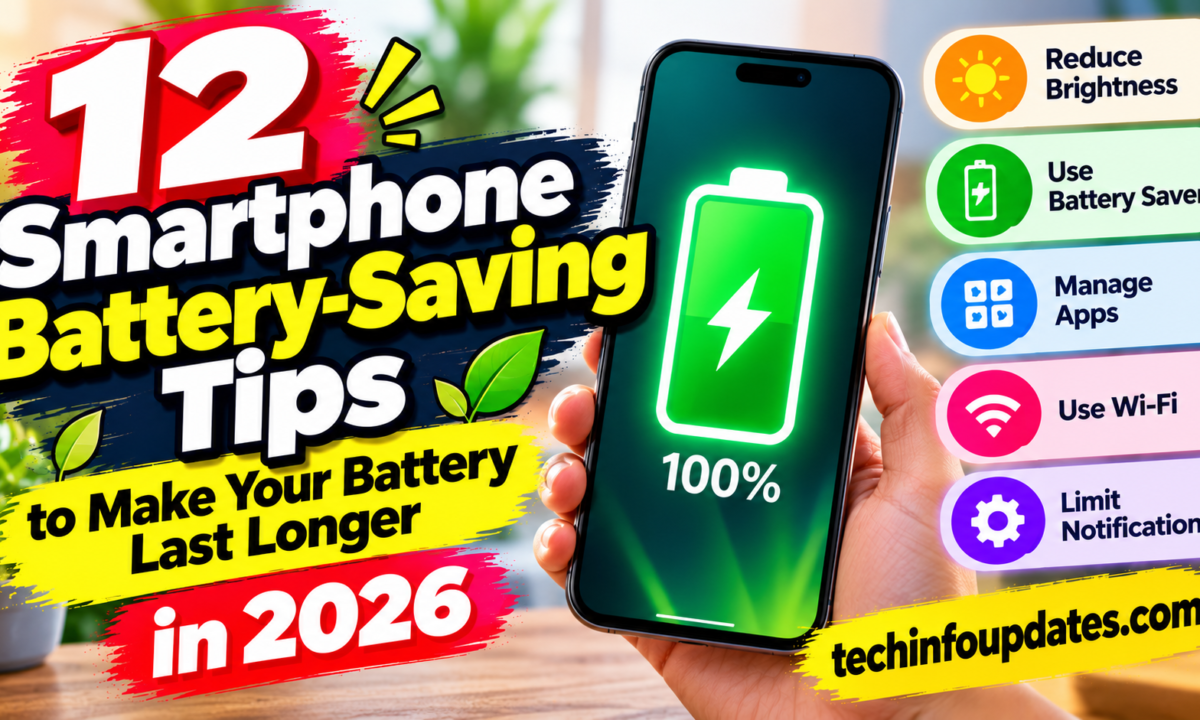
12 Practical Smartphone Battery-Saving Tips to Make Your Battery Last Longer

A smartphone battery that drains quickly can interrupt work, travel, entertainment, and everyday communication. Although battery performance depends on the device, battery age, apps, and usage habits, a few simple adjustments can often help your phone last longer between charges.
If you are constantly searching for a charger, try these 12 practical smartphone battery-saving tips.
1. Reduce Screen Brightness
The display can consume a significant amount of power, especially when brightness is high. Lower the brightness to a comfortable level and enable adaptive brightness if it works well on your phone.
You can also reduce screen timeout so the display switches off soon after you stop using the device.
2. Use Battery Saver Mode
Most Android phones and iPhones include a low-power or battery-saver feature. It may limit background activity, visual effects, synchronization, or performance to reduce power consumption.
Turn it on when your battery is running low or when you need your phone to last through a long day.
3. Check Which Apps Use the Most Battery
Your phone’s battery settings usually show which apps consume the most power.
Look for apps with unusually high background usage. Update them, adjust their settings, or restrict background activity when appropriate. Avoid disabling essential services without understanding what they do.
4. Turn Off Unnecessary Background Activity
Some apps refresh content even when you are not actively using them. Limiting unnecessary background refresh and synchronization can help reduce battery drain.
Keep essential functions such as messaging, security alerts, and work notifications enabled if you rely on them.
5. Manage Location Permissions
GPS and location-related activity can consume power, particularly when apps frequently request location updates.
Review location permissions and allow access only when needed. Where supported, choose options such as access while using the app instead of unrestricted background access.
6. Use Wi-Fi When It Is Reliable
A phone may use more power when maintaining a weak mobile connection or repeatedly searching for a network. A stable Wi-Fi connection can sometimes be more efficient, although actual results vary.
If cellular reception is poor and you do not need connectivity, airplane mode may help. Remember that it disables cellular connections until you re-enable them.
7. Avoid Excessive Heat
Heat can affect battery performance and contribute to long-term battery degradation.
Keep your phone out of direct sunlight, avoid leaving it in a hot car, and stop demanding activities if the device becomes unusually hot. If it heats up while charging, check the charger, cable, case, and surrounding temperature.
8. Reduce Unnecessary Notifications
Frequent notifications can wake the display and trigger background activity.
Turn off alerts from apps that do not need your immediate attention. Keep notifications enabled for important messages, security alerts, and other services you depend on.
9. Use Dark Mode Where It Helps
Dark mode can reduce power consumption on many OLED and AMOLED displays because darker pixels use less energy. The benefit may be smaller on LCD screens.
If your phone has an OLED display, try dark mode and see whether it improves battery life during your normal usage.
10. Keep Your Phone and Apps Updated
Software updates may fix bugs, improve compatibility, and address excessive battery use.
Install updates from official sources and review app permissions after major changes. Occasionally, battery usage may increase temporarily after a system update while the device completes background tasks.
11. Review Charging and Battery Health
Modern phones manage charging automatically, but battery capacity gradually decreases with age and use.
Check the battery-health information available on your device. Use a reputable, compatible charger and cable, and follow the manufacturer’s charging recommendations.
If the battery drains unusually quickly despite reasonable settings, it may need professional assessment or replacement.
12. Disable Features You Are Not Using
Bluetooth, personal hotspots, high-refresh-rate displays, and certain always-on features may consume additional power depending on how they are used.
Turn off features you do not need, but avoid repeatedly changing settings that make the phone less useful. Focus on functions that have a meaningful effect on your own usage.
What About Charging to 100%?
You do not need to follow a complicated charging ritual every day. Many phones provide optimized charging or charge-limit options designed to reduce battery wear over time.
Follow your manufacturer’s guidance rather than relying on universal claims about a single ideal charging percentage.
When Should You Consider a Battery Replacement?
Consider checking the battery if your phone shuts down unexpectedly, loses charge unusually quickly, or reports significantly reduced battery health.
If the battery is swollen, the phone or battery is dangerously hot, or you notice physical damage, stop using and charging the device and seek qualified service. Do not puncture or attempt to repair a damaged battery yourself.
Conclusion
You can often improve everyday smartphone battery life by lowering screen brightness, limiting unnecessary background activity, using battery-saver mode, managing location permissions, and keeping the device cool.
Start with the changes that match your habits, then review battery usage after a few days. If performance remains poor, the battery’s age or a specific app may be the underlying cause.

Sirisha is the author of Tech Info Updates. She is excited you are here --- because you're a lot alike, you and her. Tech Info Updates is a blog that's dedicated to serving to folks find out about technology, business, lifestyle, and fun.